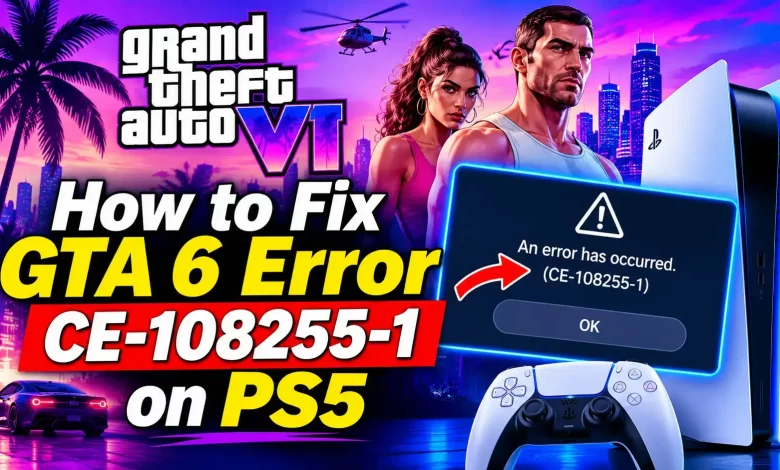
Are you experiencing GTA 6 error CE-108255-1 on PS5 while launching or playing Grand Theft Auto VI? This error can be frustrating, especially when the game suddenly crashes, freezes, or closes and returns you to the PlayStation 5 home screen.
The good news is that there are several troubleshooting steps you can try to resolve this issue. The error code CE-108255-1 is a PlayStation 5 game/application error, which means it is not necessarily caused by GTA 6 itself. It can be related to game installation files, outdated software, corrupted data, or other console-related problems.
In this guide, we’ll explain what GTA 6 error CE-108255-1 means, why it might happen, and how to fix it using practical troubleshooting methods.
What Is GTA 6 Error CE-108255-1?
GTA 6 error CE-108255-1 is a PS5 error code that indicates a problem occurred with a game or application. When this error appears, your console may close Grand Theft Auto VI unexpectedly or prevent the game from launching properly.
According to the official PlayStation Support website, the error message means:
“An error occurred with the game/application.”
PlayStation recommends updating the affected game and visiting PlayStation Repairs if additional assistance is needed.
Although this error can occur while playing GTA 6, it does not automatically mean the game has a widespread technical problem. The cause can vary depending on the console, installed game version, and individual system configuration.
Why Does GTA 6 Error CE-108255-1 Occur?
There isn’t one confirmed cause for every CE-108255-1 error. However, several potential issues may contribute to game crashes on PS5.
Here are some possibilities:
- Corrupted game data: Damaged or incomplete installation files can prevent the game from working correctly.
- Outdated PS5 system software: Older console firmware may cause compatibility issues.
- Temporary console glitches: Background system errors can sometimes affect game performance.
- Database or cache problems: Temporary system data issues may interfere with normal game operation.
- Installation problems: An interrupted download or update could leave the game installation in an unstable state.
Now, let’s look at the methods you can try to fix GTA 6 error CE-108255-1.
How to Fix GTA 6 Error CE-108255-1 on PS5
1. Update GTA 6 to the Latest Version
The first thing you should do is check whether a new GTA 6 update is available.
Game updates often include bug fixes, performance improvements, and stability enhancements. If the error is related to an issue that Rockstar has already addressed, installing the latest update may resolve it.
– Follow these steps to update GTA 6:
- Turn on your PS5.
- Navigate to the Games section.
- Highlight Grand Theft Auto VI.
- Press the Options button on your controller.
- Select Check for Update.
- Download and install any available update.
- Restart your console and launch GTA 6 again.
2. Restart Your PS5 Console
Sometimes, a temporary system glitch can cause applications to crash unexpectedly. Restarting your PS5 can clear temporary issues and allow the console to start fresh.
– Here’s what to do to restart your PS5:
- Press the PS button on your controller.
- Open the Control Center.
- Select Power.
- Choose Restart PS5.
- Wait for the console to restart.
- Launch GTA 6 again.
3. Update PS5 System Software
Running outdated PS5 system software can sometimes create compatibility issues with games. Sony regularly releases firmware updates that improve console stability, security, and performance.
– Follow the steps to check for updates:
- Open Settings on your PS5.
- Select System.
- Navigate to System Software.
- Choose System Software Update and Settings.
- Select Update System Software.
- Install any available update.
- Once the update is complete, restart your console
- Now, check whether GTA 6 works properly.
4. Clear PS5 Cache
Temporary cache files help your console operate efficiently, but clearing the cache can sometimes resolve unusual system behavior. You can clear the PS5 cache through Safe Mode.
– Follow these steps carefully to clear cache:
- Turn off your PS5 completely.
- Press and hold the power button.
- Release it after hearing the second beep.
- Connect your controller using a USB cable.
- Press the PS button.
- Select Clear Cache and Rebuild Database.
- Choose Clear System Software Cache.
- Confirm your selection and wait for the process to finish.
- Afterward, restart your PS5 and try launching GTA 6.
Important: Choose the cache-clearing option first. You do not need to reset your console to clear its cache.
5. Rebuild the PS5 Database
If clearing the cache doesn’t solve the problem, rebuilding the database is another troubleshooting option.
This Safe Mode feature scans the console’s storage and reorganizes its content. It may help resolve certain system data or indexing problems.
– Here’s how to rebuild the database:
- Turn off your PS5.
- Press and hold the power button until you hear the second beep.
- Connect your controller using a USB cable.
- Press the PS button.
- Select Clear Cache and Rebuild Database.
- Choose Rebuild Database.
- Wait for the process to complete.
- Your PS5 will restart when the process finishes.
6. Restore PS5 Licenses
If you’re using the digital version of GTA 6, restoring licenses is another step worth trying. License restoration can help resolve certain content-access problems associated with your PlayStation account.
– Follow these steps to restore PS5 licenses:
- Open Settings on your PS5.
- Select Users and Accounts.
- Navigate to Other.
- Select Restore Licenses.
- Choose Restore.
- Wait for the process to complete.
- Restart your console and launch GTA 6.
7. Reinstall GTA 6
If the error continues after trying the previous methods, your GTA 6 installation may be damaged. Reinstalling the game gives you a fresh installation and can replace problematic game files. Before proceeding, make sure your saved progress is backed up or synced where appropriate.
– Follow these steps to reinstall GTA 6:
- Navigate to the Games section on your PS5.
- Highlight Grand Theft Auto VI.
- Press the Options button.
- Select Delete.
- Confirm the deletion.
- Open your Game Library or PlayStation Store.
- Download and install GTA 6 again.
- Wait until the installation and required updates are complete.
- Launch the game.
Note: Deleting the game application is different from deleting saved data. Check your saved data separately before removing anything.
8. Contact PlayStation Support or Rockstar Support
If none of these methods work, the problem may require additional investigation. Contact PlayStation Support if the CE-108255-1 error continues to appear across multiple games or applications.
If the error happens exclusively with GTA 6, you can also report the problem to Rockstar Support.
– When contacting support, provide the following information:
Your PS5 model (standard, Slim, or Pro).
Your installed PS5 system software version.
Your GTA 6 game version.
When the error occurs.
Whether other games work normally.
Any troubleshooting methods you’ve already attempted.
Providing these details can help support teams investigate the issue more effectively.
What If GTA 6 Still Crashes After Fixing CE-108255-1?
If you’ve followed all the troubleshooting methods and GTA 6 continues crashing, avoid repeatedly deleting and reinstalling the game. Instead, try to identify a pattern.
For example:
- Does GTA 6 crash immediately after launching?
- Does the error appear when loading a saved game?
- Does it happen during a particular mission?
- Does the game crash after playing for 20–30 minutes?
- Do other PS5 games also experience crashes?
These details can help narrow down whether the issue is related to the GTA 6 installation, a specific game situation, or the console itself.
You should also check official Rockstar announcements for any newly released GTA 6 updates or known issues.
Avoid initializing or factory resetting your PS5 unless PlayStation Support recommends it. Such operations can erase console data.
Final Words
GTA 6 error CE-108255-1 can interrupt your gaming experience, but there are several troubleshooting methods worth trying before considering more drastic solutions.
Start with the simplest options: update GTA 6, restart your PS5, and install the latest system software. If those steps don’t help, try clearing the cache, rebuilding the database, restoring licenses, or reinstalling the game.
Remember that CE-108255-1 is a general PS5 application error, so the exact cause can vary from one console to another.
If the issue continues after trying these solutions, contact PlayStation or Rockstar Support for further assistance.
Did one of these methods fix GTA 6 error CE-108255-1 on your PS5? Share your experience in the comments to help other players troubleshoot the same problem.
Frequently Asked Questions (FAQs)
What does GTA 6 error CE-108255-1 mean?
How do I fix GTA 6 error CE-108255-1?
Is CE-108255-1 a GTA 6-specific error?
Will reinstalling GTA 6 fix CE-108255-1?
Does rebuilding the PS5 database delete games?
Can a PS5 hardware problem cause CE-108255-1?
Should I factory reset my PS5 to fix GTA 6 error CE-108255-1?