

Looking for iOS emulators for desktop? You can stop your hunt here as we’ve got your back. In this article, we’ve listed the top 10 iOS emulators that can easily be used on a desktop. While we’ve used each one and we think this list can be of great help, we keep ourselves open for any suggestion you may have.
If you are an iPad or iPhone user, you might find it difficult to share files or run iOS applications on your Windows PC. Below given are some of the topmost iOS emulators, which will enable you to run your iOS apps on a Windows computer.
The iOS emulators create an iOS ecosystem in the Windows computer, thus facilitating iOS apps’ usage on your Windows PC.
List Of Best iOS Emulators for Windows
Let’s take a look at the ones we tested and found worth trying-
- SmartFace Emulator
- Ipadian
- Appetize.io
- Xamarin Test Flight
- Ripple Emulator
- Mobione StudiOS
- Air iPhone
- Electric Mobile Studio
- Wave
- Testflight Emulator
- IMAME
- iDOS Emulator
1. SmartFace Emulator
One of the best iOS emulators, SmartFace, is exceedingly easy and convenient to use. It is a popular choice among users when it comes to iOS emulators. This emulator has two versions – one is the free version, and the other is the premium one.
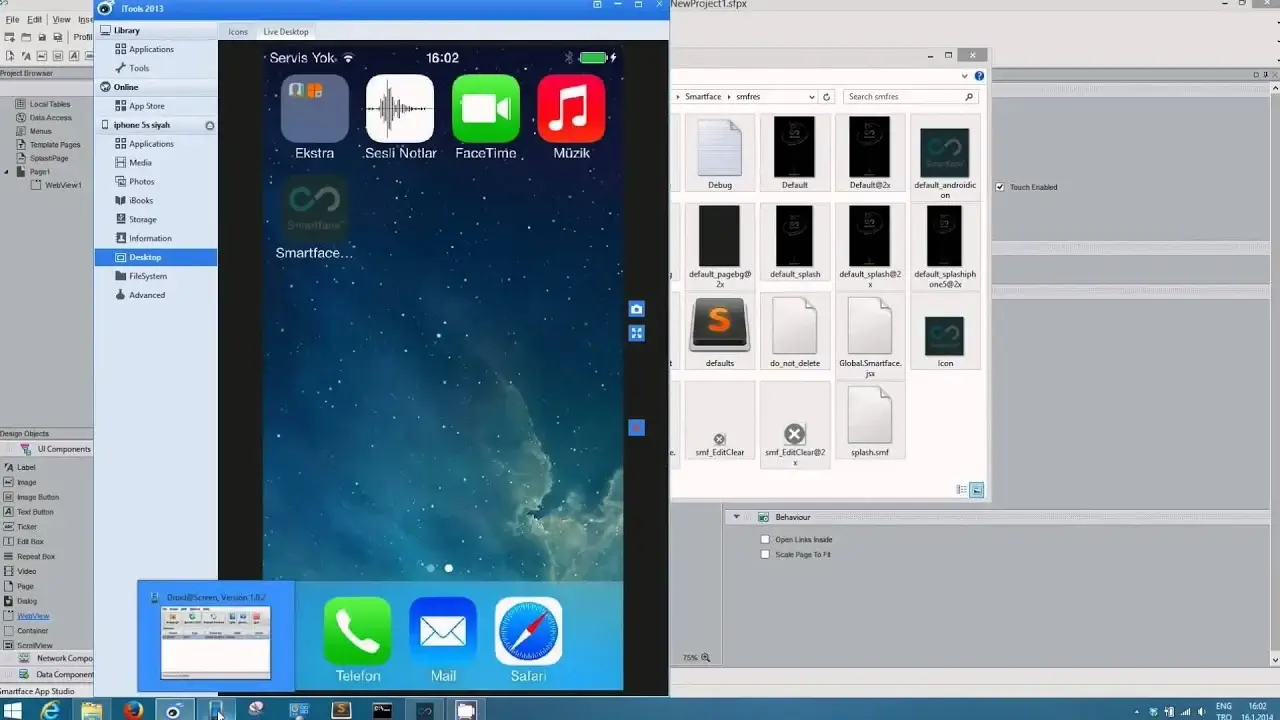
Also, it offers some unique and secure features to the users. If you want to go for the premium version, you need to pay $99. Feel free to choose the plan as per your requirement and budget. We would advise you first to download the free version and try it out. Then you can further upgrade to the paid version if you want.
– Pros:
- Comprehensive debugger and testing suite
- Ideal for professional developers
– Cons:
- Can be complex for beginners
- Paid plans for full functionality
2. iPadian
iPadian is among the most popular iOS emulator for Windows PC. Instead of true emulation, it simulates the iOS interface, giving you an iPhone/iPad-like environment. It’s great for beginners who just want to feel like they’re using iOS on Windows
Within the app store, users can easily explore multiple third-party apps.
– Pros:
- Simple, familiar interface
- Works on most Windows machines
– Cons:
- Not a full emulator — can’t run all App Store apps
- Limited actual iOS functionality
3. Appetize.io
Appetize.io runs completely in your browser, providing a cloud-hosted iOS simulator that you can access from Windows (or any OS). Developers often use it to test app builds without installing software locally.

It comes with a simple, easy-to-use user interface. Also, it offers the feature of Cloud storage. The first 90 minutes of usage is absolutely for free. Then if you want to use the emulator further, you will have to buy the premium version.




– Pros:
- No installation required
- Works straight from a browser
– Cons:
- Limited to app testing
- Free usage is time-capped
4. Xamarin / TestFlight Setup (via Visual Studio)
While not a standalone emulator, Xamarin TestFlight through Visual Studio lets developers test iOS apps using remote simulators or via TestFlight distribution.
It comes pre-loaded with extensive features. These features prove to be of great help for testing and running iOS apps on a Windows computer. The emulator also offers a multitude of user support.
It will take some time to get familiarized with this emulator.
– Pros:
- Deep developer tools
- Great for cross-platform .NET apps
– Cons:
- Requires Visual Studio and setup effort
5. Ripple Emulator
Ripple runs as a browser extension and lets you simulate mobile environments including iOS. It’s super light and easy to use for web-based testing but isn’t suited for full native app support.. It helps in the successful sampling of different types of iOS software.
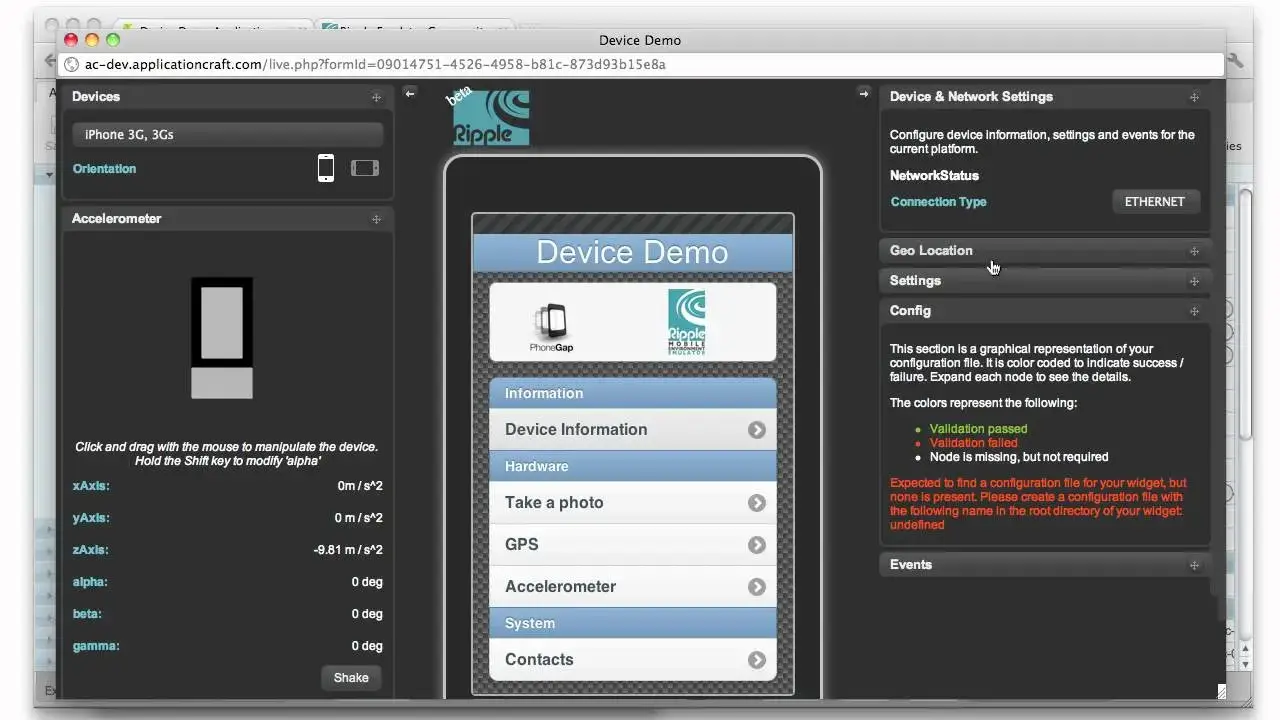
It comes with some exclusive features which you will not get easily in any other iOS emulator. It is quite helpful in developing and testing iOS apps on your Windows PC. It comes with a simple user interface. It works quite well in emulating iOS apps on your Windows PC.
– Pros:
- Browser-based and free
- Quick testing of touch/HTML5 apps
– Cons:
- Limited to web apps
- Not a full iOS emulator
6. Mobione StudiOS
The next on our list is another popular Mobione StudiOS. Though this emulator is not getting any update from the developers yet it is functioning perfectly. Furthermore, this one is supportive of engineers who may need to create cross-stage apps for mobile devices.
If you can find a safe download, it still provides a basic iOS environment on Windows.
– Pros:
- Historic, full-featured environment
– Cons:
- No official support
- Security risks with downloads
7. Air iPhone
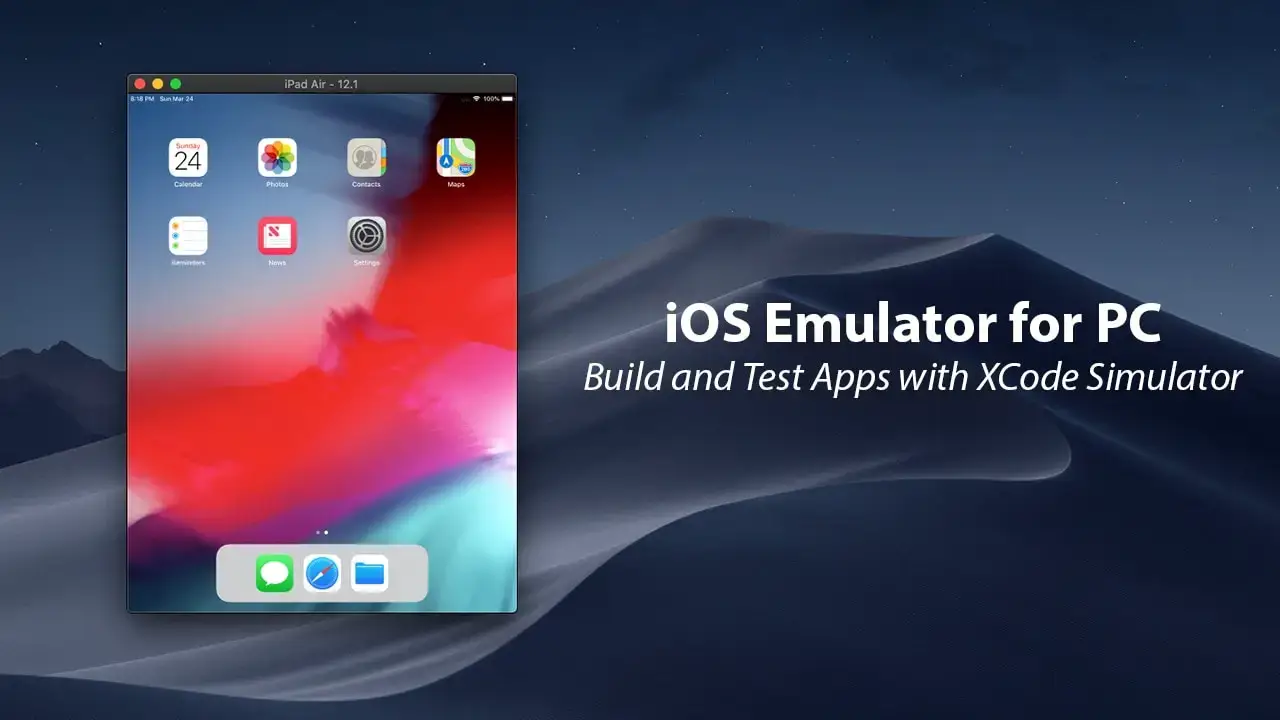
If you are aware of the Adobe Air system, Air iPhone can be your best choice. This emulator is also dependent on a similar system. The good thing about this one is that it is easy to use. You can download and run iOS applications.
Yeah! That’s it.
– Pros:
- Lightweight and free
- Good for UI previews
– Cons:
- Limited app support
- Not a full emulator
8. Electric Mobile Studio
Experts often use this one for iPhone and iPad applications. You can use the preliminary version for free while the full version comes at the cost of 40$.
If you are looking for a decent alternative during your hunt for iOS emulators for PC, you can cash on this one without a doubt. To us, we found the user experience to be exceptionally smooth.
– Pros:
- Feature-rich
- Good for design/testing workflows
– Cons:
- Costs money
- Geared toward development
9. Wave Emulator
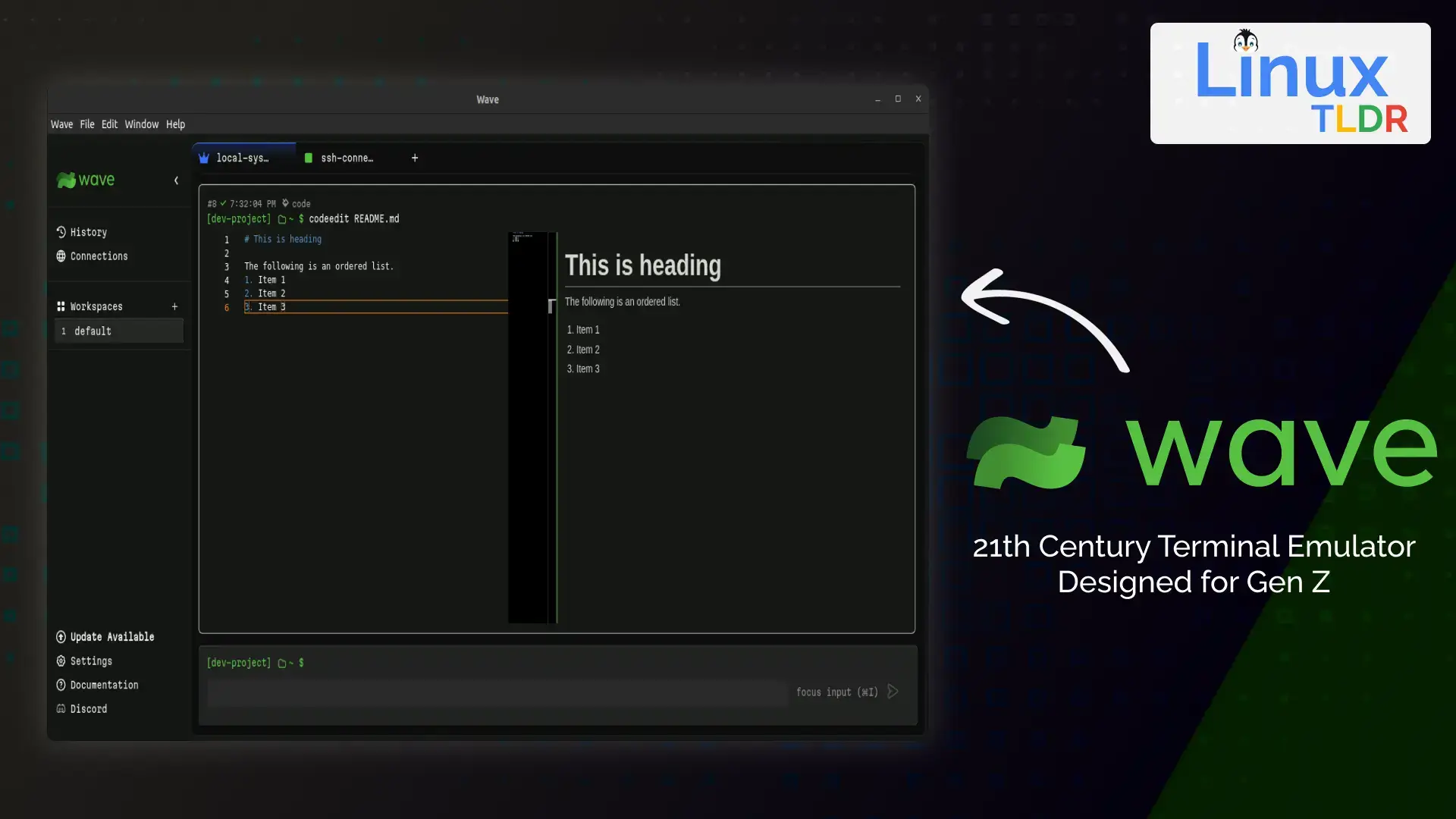
Wave is another iOS emulator that is fan-picked. This one is also used by developers mostly for testing purposes. If compared to other iOS emulators available, this one comes with a decent scope of highlights. Interestingly you need not download this emulator. You can include and introduce them.
– Pros:
- Lightweight and easy to install
- Suitable for basic iOS interface simulation
- Does not require high system resources
- Helpful for quick testing or demonstrations
– Cons:
- Limited documentation and community support
- Not a true iOS emulator
- Cannot run most native iOS apps
- Lacks advanced developer or debugging tools
10. Testflight Emulator
Developers mostly use Testflight for beta testing iOS applications that are coded using Xamarin. Interestingly, it has been the most popular one among iOS developers for many reasons, including its availability for free, smooth performance, and ease to use.
– Pros:
- Official Apple platform for app testing
- Ideal for beta testing iOS apps before public release
- Provides real-world performance testing on actual devices
- Secure and reliable testing environment
– Cons:
- Not an emulator in the traditional sense
- Requires an Apple ID and iOS device
- Cannot be used to run iOS apps directly on Windows
- Primarily designed for developers, not general users
11. IMAME
iMAME focuses on running simple iOS games or app formats on Windows. It’s lightweight but supports a limited range of titles. This emulator for gamers gives good reviews back it for running various iOS games smoothly.
It isn’t considered the best one, but you may still want to try.
– Pros:
- Lightweight
- Easy to use
– Cons:
- Limited app/game compatibility
12. iDOS Emulator
We’ve kept this one at last on our list. For a simple reason that we do not find it easy to set up and use. If you are a beginner, we would suggest you keep out of this one. However, if you have been a pro using emulators, you might not find it difficult either.
However useful an emulator may be, it can trouble other applications on your system. That’s because it eats up large RAM usage. A disturbance follows this in playing high-end games. Hence, we recommend using Advanced System Optimizer, which works as a game booster and kicks up the system performance.
Additionally, it works as a system protector and disk optimizer.
– Pros:
- Useful for running legacy DOS-based applications
- Lightweight and fast performance
- Appeals to retro-computing and classic gaming enthusiasts
- Simple setup compared to full mobile emulators
– Cons:
- Not designed for modern iOS app emulation
- Cannot run App Store applications
- Limited practical use for iOS developers
- Focuses more on DOS environments than iOS features
Conclusion
We hope this list of iOS emulators helps you play games and run iOS applications on a desktop. While most of these emulators are free, some come at a cost but is worth giving a try.
Please share your experience and let us know about any great emulator you know can be useful for others. We would love to update this article as per your suggestions.