

Is there a way to increase the performance of your Minecraft Game? Did you know that Minecraft doesn’t rely upon the maximum RAM of your system? There’s a specific amount Minecraft consumes and nothing more than that.
These values are set according to the version and mod of Minecraft you have. However, you can change these values. Through modifications, you can allocate more RAM to Minecraft for a non-stop gaming experience.
Here you will learn about various methods of carrying the process. Before you get into it, let’s learn the reason to use more RAM for Minecraft.
Why Does Minecraft Need More RAM?
Minecraft is a highly efficient game that is easy on a system’s specifications. Unlike many graphic-extensive games, it doesn’t require excessive specs or best in class GPUs to work well. Like Minecraft Vanilla, some versions need as low as 2GB of RAM at best to bring you a seamless gaming experience.
Due to its low-specs requirement and open-world appeal, it’s a game that everyone across the world loves. However, the players of Minecraft can get very creative. As a result, you might come across many maps heavily built with extensive use of blocks.
Hence, it would require more RAM to work efficiently. More importantly, if you’re playing a different mod, it will take a toll on your system. In these cases, it could become very challenging to play the game efficiently. You will find lag and slack in FPS.
Apart from lag, the interface might start responding slow and even crash if the RAM is not sufficient in any manner. You might feel helpless during these instances, but there’s a way for you to allocate more RAM to Minecraft.
– Allocation Process
First, to prepare for the process, make sure that the launcher you use is up to date. Check for game updates, as well. It’s better to do it before you begin the process to prevent any form of problem.
Next, make sure that you have extra RAM to use. If you don’t have RAM, there’s no point in following up on this procedure. The general rule of thumb is to save a minimum of 1 GB of RAM for your system’s other process. It could take a significant toll on the system, but worth the trade as Minecraft won’t ever use a complete RAM.
So if you have 4 GB RAM, you should use 3 GB for Minecraft at best. If it’s 8 GB RAM, then 7 GB (or six if you want to save more RAM). As mentioned before, Minecraft’s standard RAM consumption is 2GB, so even if you allocate it 6 GB RAM, it will have three times more RAM.
– The Standard Client Method
If you’re using Minecraft’s launcher, then you have to do some coding. But don’t you worry! It’s not something extensive at all! Almost anyone can do it quickly. All you have to do is change a single thing. So let’s take a quick look at how:
- Go to Minecraft launcher, and if you have more than one version or mode, you’d have to select that specific version you want to allocate the RAM to. You can do it for all of the versions or modes you have.
- Make sure to go to Installations and select the version you want. There, you will see an option to play or a setting option (three dots). Click on the setting, and from there, you will get a drop-down to select the Edit.
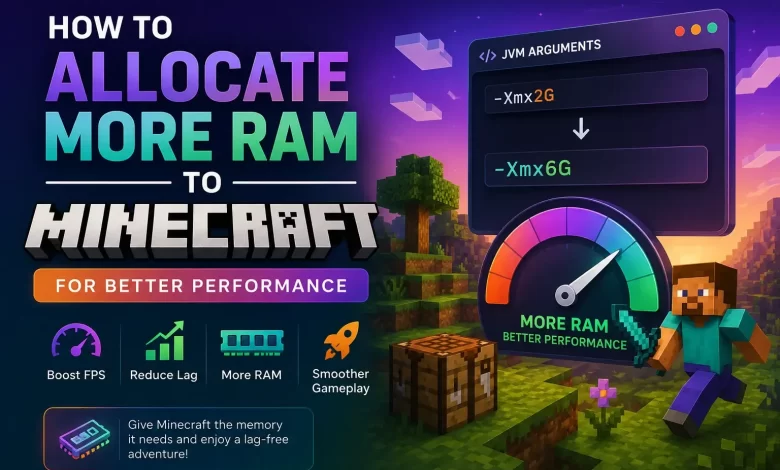
- A new window will open up, and you can scroll down to find JVM arguments. In that box, you will see a lot of random texts and alphabets. You have to focus on this ‘-Xmx2G-‘which is the ram allocation code for your launcher.
- Now the ‘2’ there is the amount of RAM it will consume. You can directly change it to 3, 4, 6, or anything you like.
Be careful and don’t edit anything else. Double-check if you have to, and then click on Save.
Sometimes it’s about profiles, and this might become a different profile. So before launching the game, double-check to ensure you have selected the right shape to launch and play the same.
– ATLauncher Customization
It’s easier to use ATLauncher to customize the RAM allocation. All you have to do is open the ATLauncher and go to settings.
- There you will find Minecraft/JAVA. It’s located on the top menus, so click on it.
- From there, you can easily find ‘Maximum Memory/RAM’ and the values in front of it.
- Now you can type manually or use the arrows to increase or decrease the RAM consumption.
- Make sure to save, and you’re good to go.
That’s all you need to do.
– Follow for Other Launchers
Almost all other launchers like Twitch launchers and such showcase ‘Allocated Memory’ in the settings. You can access the settings easily. If you don’t find the allocated memory there, then you can go to JAVA settings in them. Some launches might have ‘Minecraft’ in the setting for you to change.
Either way, the process is the same. You go to allocated memory and increase or decrease the RAM and then save the settings.
Benefits of Allocating More RAM to Minecraft
Allocating additional RAM to Minecraft can significantly improve your overall gaming experience, especially if you use mods, shaders, or large custom maps. Here are some of the major benefits:
1. Better FPS and Smoother Gameplay
When Minecraft has enough memory available, the game can load chunks, textures, and entities faster. This results in:
- Fewer frame drops
- Reduced lag spikes
- Faster world rendering
- Smoother gameplay during exploration
This is especially noticeable in heavily populated multiplayer servers or large survival worlds.
2. Improved Performance With Mods
Mods can dramatically increase Minecraft’s memory usage. Popular modpacks such as:
- Feed The Beast (FTB)
- SkyFactory
- RLCraft
- All The Mods
Often require 4GB to 8GB of RAM just to run properly. Without sufficient RAM, these modpacks may:
- Freeze frequently
- Crash during startup
- Take a very long time to load
- Experience severe lag
Allocating more memory helps stabilize the experience.
3. Faster Chunk Loading
If you travel quickly using Elytra, boats, minecarts, or creative mode flight, Minecraft constantly generates and loads new chunks. Low memory allocation can cause:
- Chunk rendering delays
- Invisible terrain
- Stuttering movement
Extra RAM allows Minecraft to process chunk generation much faster.
4. Better Shader and Texture Pack Support
High-resolution texture packs and realistic shaders consume a large amount of memory. If you enjoy visual enhancements like:
- RTX-style shaders
- HD textures
- Realistic lighting
- Advanced shadows and reflections then increasing RAM becomes almost necessary for stable performance.
How Much RAM Should You Allocate?
Many players assume giving Minecraft the maximum RAM available is always the best option. However, allocating too much RAM can actually reduce performance due to Java’s garbage collection behavior.
Here are some recommended RAM allocations:
| Total System RAM | Recommended Minecraft RAM |
|---|---|
| 4 GB | 2–3 GB |
| 8 GB | 4–6 GB |
| 16 GB | 6–8 GB |
| 32 GB+ | 8–12 GB |
How to Check Your Current RAM Usage in Minecraft
Before increasing RAM, you should check how much Minecraft is already using.
Using the F3 Debug Screen
- Launch Minecraft
- Enter a world
- Press F3 on your keyboard
You will see memory usage details on the top-right side of the screen, including:
- Allocated memory
- Used memory
- FPS
- Chunk updates
If the memory usage constantly stays near 100%, your game likely needs more RAM.
Common Mistakes to Avoid While Allocate More RAM to Minecraft
1. Allocating Too Much RAM
Giving Minecraft all available system memory may:
- Slow down Windows
- Cause background apps to crash
- Increase garbage collection pauses
- Always leave memory available for:
- Windows
- Discord
- Browsers
- Recording software
- Background services
2. Ignoring Java Updates
Minecraft Java Edition relies heavily on Java performance. Outdated Java versions can reduce efficiency and create compatibility problems.
Always use:
- Latest Java version supported by your Minecraft version
- 64-bit Java for higher RAM allocation
3. Using Too Many Mods
Sometimes performance problems are caused by poorly optimized mods rather than insufficient RAM. Try:
- Removing unnecessary mods
- Updating old mods
- Installing optimization mods
Popular optimization mods include:
- OptiFine
- Sodium
- Lithium
- Phosphor
Improve Minecraft Performance Beyond RAM Allocation
RAM is important, but it’s not the only factor affecting Minecraft performance.
- Lower Render Distance: Reducing render distance from 32 chunks to 12–16 chunks can massively improve FPS.
- Enable Performance Settings: Inside Minecraft video settings:
- Turn off fancy graphics
- Disable smooth lighting
- Reduce particles
- Lower entity distance
- Install SSD Storage: Minecraft loads worlds much faster on SSDs compared to traditional HDDs.
- Update Graphics Drivers: Updated GPU drivers can improve shader and OpenGL performance.
- Close Background Applications Applications such as:
- Chrome
- OBS
- Steam downloads
- Video editors
Troubleshooting Minecraft Crashes After Increasing RAM
If Minecraft crashes after changing RAM allocation, here are some possible fixes:
- Check JVM Arguments: Incorrect JVM arguments can prevent the launcher from starting properly. Ensure only the RAM value was modified.
- Use 64-bit Java: 32-bit Java cannot allocate large amounts of RAM. Install 64-bit Java if you plan to use more than 2–4 GB.
- Reduce Allocated RAM: Sometimes lower RAM values work more efficiently. Try reducing the allocation slightly.
- Reinstall the Launcher: Corrupted launcher files may also cause memory-related issues.
Final Words
RAM is the primary determinant of the game’s performance to play it effectively. You don’t have to worry about GPU or other requirements. If you’re playing online in an open-world, then you would need optimum connection speed, and that’s all.
Now you know how to allocate higher RAM for Minecraft. You can even allocate complete RAM. It’s not like Minecraft will use maximum RAM output all the time. However, it’s always better to remember the general rule and spare 1 GB RAM for other tasks and processes.
Remember, these processes are for standard Minecraft games and launchers. Primarily, you can use them efficiently on a PC. If you have other devices like the android platform, it probably uses an individual launcher and can follow the same process.
So enjoy Minecraft without any lag or decline in the performance. Have fun and share the wisdom!






Keep up the wonderful piece of work, I read few articles on this web site and I believe that your website is very interesting and has sets of superb information.