

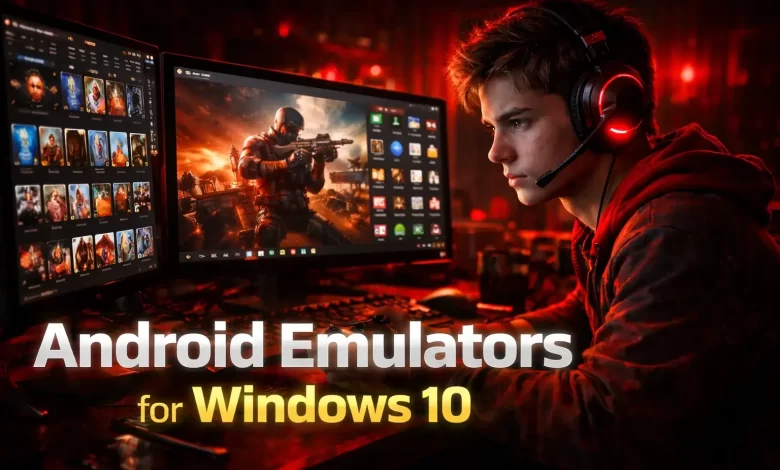
There is no shortage of emulators today. So, If you are looking for an emulator to run Android on your Windows PC, you can definitely go for it. There are actually a lot of reasons why you may want to use an Android emulator on your Windows PC.
For example, you can get access to a lot of Android apps on your desktop, and also gamers can enjoy amazing Android games on a larger screen and the list really goes on and on. Well, by now you know what are the many advantages of using Android emulators, so, you may definitely want to try one out.
There are also some Android emulators that do not work as they show the users. Hence, we have got you covered. We are listing the 5 best Android emulators for PC. All of these emulators should be able to work on Windows 7, 8, 8.1 & 10 as well.
Looking for iOS Emulators for PC? Check our recent guide.
Best Android Emulators for Windows 10
1. MEmu Play
Okay, so MEmu Play is another amazing Android emulator that works on Windows which has lately gained a lot of popularity. Apart from that, this emulator comes with the ability to run multiple instances of apps and Android versions at the very same time.
Also, the software is based on Android Nougat (7.1.2) by default and it can also run Kit Kat (4.4) and also Lollipop (5.0) as well. This Emulator also lets you have three different windows for all three Android versions. So, it’s totally different from others.
Well, let’s be honest, It is actually a very difficult task to name a single or even just a couple of features of this amazing Emulator as MEmu comes loaded with a lot of useful features.
One of the best features of the emulator is the fact that it supports both Intel as well as AMD CPUs too which is honestly great from a compatibility point of view. We know it’s amazing, but it is a feature not available on many Android emulators out there.
As we know, the emulator has some amazing optimizations for gameplay, we feel like it’s one of the best Android emulators for general users too. You can run the emulator on any Windows version be it Windows 7 or 10 and it’s compatible with both Intel and AMD processors too.
– Key Features:
- Multi-instance support
- Multiple Android versions
- Excellent gaming optimization
- Keyboard mapping support
- Intel & AMD compatibility
– Pros:
- Lightweight and fast
- Great for gaming and productivity
- Stable performance
– Cons:
- UI can feel slightly outdated
- Occasional ads in free version
2. Bluestacks
So, let us talk about BlueStacks here. To be very honest, the best thing about BlueStacks is that it can actually run on any kind of Windows hardware, be it AMD or Intel. BlueStacks is known as one of the best Android emulators that you can find on Windows without any doubt.
It doesn’t only cover gaming but as a general user, if you also want to enjoy some Android apps on Windows PC then yeah let me tell you, BlueStacks is a great emulator at your service. Over the year, it has been through many changes and has developed in a better way and the current BlueStacks is based on Android 7.1.2 which is Nougat.
The developers of BlueStack have also promised it’s users that it’s going to bring BlueStacks 5 soon with a new gaming engine and that the Android version will be based on Oreo. Also, to provide an amazing experience to Android emulation on Windows, BlueStacks has also partnered with Samsung to bring the Galaxy Store on its platform. That’s really cool, isn’t it?
It also gives you access to a number of quality Android games on Windows which includes Fortnite, RAID, Sonic Forces, and many more. And we can not forget about the performance. The company claims that BlueStacks is way more powerful than standard Android phones out there. On top of that, it has a wide range of features like multi-instance, key mapping, and an AI-based gaming engine for an amazing performance.
All in all, if you are looking for the best Android emulator on Windows then BlueStacks surely is gonna be at the top of the list.
– Key Features:
- AI-based gaming engine
- Multi-instance functionality
- Custom key mapping
- Built-in app store + Google Play Store
- High-performance optimization
– Pros:
- Best overall emulator
- Excellent gaming performance
- Regular updates and support
– Cons:
- Can be resource-heavy
- May feel slow on low-end PCs
3. Remix OS Player
Remix OS Player is a completely free Android emulator that works for Windows which is based on Android 6.0 Marshmallow. Honestly speaking, Remix OS Player is in many ways, one of the best Android emulators out there for windows.
It not only carries a ton of features like network type, native Google Play support, button mapping, manual settings for signal strength, location, battery, and many more. We have tried it on some of the laptops we have owned and being honest, the software never has let us down at all. Stability is what everyone looks for and the Remix OS player delivers on that front.
Also, you need to keep in your mind, Remix OS Player is no longer in development. But what you can do is, use the older build which is based on Marshmallow. It really performs pretty well.
– Key Features:
- Customizable system settings
- Native Google Play Store support
- Multi-window multitasking
- Manual controls for network, battery, and location
– Pros:
- Desktop-style interface
- Stable performance
- Great multitasking features
– Cons:
- No longer supported
- Limited updates and compatibility
4. Nox Player
We have tried this emulator and let me tell you, it comes with a number of amazing features like Gameplay optimizations, ability to change the Android device’s build. prop, controller compatibility, and a completely user-friendly interface are just some of the things where Nox Player has. With this, it definitely outshines other Android emulators on Windows.
So, if someone is out there looking for an Android emulator on Windows that has like tons of features other than just gaming, well then, Nox Player is definitely gonna be the perfect pick for you. It is based on Android Lollipop 5.1.1, but one amazing part is, you can run multiple Android versions up to Nougat using its Multi-Drive feature, and it’s free to download.
There is another factor where Nox Player truly overshines over other Emulators is that the ability to get root access. If you may have ever tried rooting in some other Emulators, you might know that it is a very difficult task.
Whereas on Nox Player, all you need to do is just simply enable a toggle in the settings, and BOOM! – you’re rooted. That is so simple, right? Nox Player is great for you guys and I really believe it’s among the best Android emulators on Windows.
– Key Features:
- Built-in root access
- Multi-instance support
- Gamepad compatibility
- Advanced customization
– Pros:
- Highly customizable
- Easy rooting process
- Smooth gameplay performance
– Cons:
- Slightly outdated Android version
- Can lag on older systems
5. LDPlayer
LDPlayer has very quickly risen to popularity due to its great performance. You won’t believe it, but it has been just a few months since it’s been launched. As for its Android version, LDPlayer runs on Android Nougat (7.1.2) for amazing performance and compatibility and also it’s completely free to download.
If you are looking for an Android emulator for Windows 10 that is made mainly for gaming then let me tell you, the latest emulator in town is LDPlayer. There is also an app store for games that comes with the emulator and they run quite well on LDPlayer. If you are looking to improve the performance of the same then you may also take advantage of Virtualization Technology from the Settings page.
I would say LDPlayer is an up to date Android emulator that offers you a simple. But, at the same time a very powerful Android experience on Windows computers, be it gaming or just for general usage. It works flawlessly without any error. The emulator will comfortably run on Intel-based Windows PCs and even AMD as well.
– Key Features:
- Optimized for gaming
- Fast and lightweight
- Virtualization support
- Custom controls and settings
– Pros:
- Excellent performance for games
- Easy to use interface
- Lightweight compared to competitors
– Cons:
- Limited for non-gaming use cases
- Fewer advanced features than Nox
Final Thoughts
Android emulators have become an essential tool for gamers, developers, and everyday users who want to experience mobile apps on a larger screen with better performance and controls. Whether you’re looking for high-end gaming, app testing, or simple multitasking, the right emulator can completely transform your experience.
Options like BlueStacks and LDPlayer excel in gaming performance, while MEmu Play and Nox Player offer flexibility and advanced features. Even though Remix OS Player is no longer actively supported, it still provides a stable, desktop-like Android experience.
Ultimately, the best emulator depends on your specific needs and system capabilities, but all the options listed above are reliable, free to use, and worth trying. All of these emulators are just amazing with great performances and with a lot of features. Also, these are free to download.
So, you can just choose any and try for yourself how it works for you and your games too.



Keep working ,impressive job!