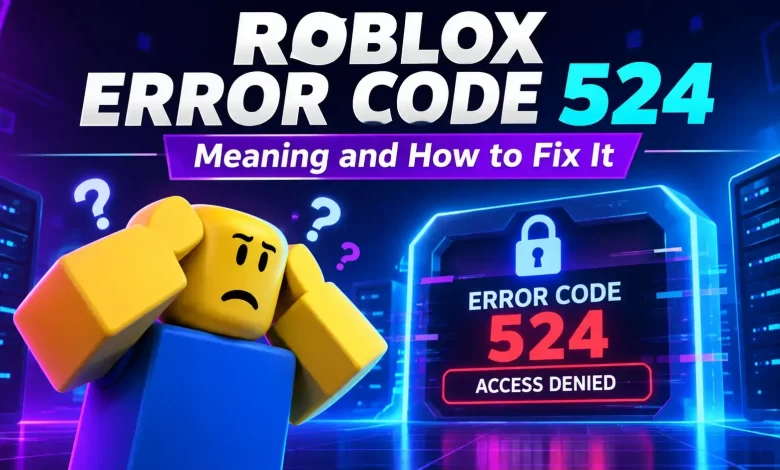
You are ready to join your gamer friends; the game is loading, then boom! Roblox error code 524 pops up out of nowhere. Instead of letting you do the action, you receive a message saying you don’t have permission to join the game. Frustrating, right?
But here’s the good news: This error does not mean your account is banned or your device is broken. Roblox error 524 usually means that your account cannot access a particular server or an experience. This issue often includes private-server permission, account privacy settings, or a temporary problem with the experience.
Before changing any random network settings or reinstalling Roblox, try the fixes below. First, start with access permissions because they are usually the real reason you cannot join the game.
Roblox Error Code Meaning: Why Does It Happen?
Understanding the cause makes fixing Roblox error code 524 much easier. Common reasons include:
- Private server restrictions: The owner has not added you or allowed you to join.
- Privacy settings: Your account settings prevent you from joining certain private servers.
- Account age restrictions: Your account may have limitations on private-server access.
- Experience requirements: A game may restrict access to certain users or groups.
- Temporary Roblox issues: The experience or server may be unavailable.
- App or network glitches: An outdated app, unstable connection, or temporary device problem may interfere with joining.
Key gaming tip: If you can join other Roblox experiences but one server rejects you, check access permissions first. If several games fail, investigate broader service or connection issues.
How to Fix Roblox Error Code 524?
Fix 1: Check Whether You Have Permission to Join
Start here, especially if error 524 appears when you join a private server.
- Ask the server owner whether the server is private and who can access it.
- Confirm that your Roblox username has been added to the server’s member list, if required.
- Check whether the owner has enabled the option that allows friends to join.
- Make sure you are using the correct Roblox account.
If the owner has restricted access, changing your computer settings will not grant permission. The owner needs to adjust the server settings or invite the correct account.
Fix 2: Review Your Roblox Privacy Settings
Your account’s privacy settings can prevent you from joining private servers, even when a friend sends you an invitation.
- Open Roblox and sign in to your account.
- Open Settings using the menu or gear icon.
- Select Privacy and content restrictions.
- Open Visibility & private servers.
- Find the private-server setting and review who can add you as a member.
- Choose an available setting that allows the intended access, if your account is eligible. Options can vary depending on account age and restrictions.
Players under 13 face additional limits and may only be able to join private servers created by their friends. If a setting is unavailable, do not try to bypass the restriction; check the account’s eligibility instead.
Fix 3: Ask the Server Owner for a Fresh Invitation
An invitation may no longer work if the owner changes the server’s access settings or replaces the invitation link.
- Ask the owner to confirm that the private server is active.
- Request a new invitation link if necessary.
- Make sure the invitation is intended for the correct account.
- Open the link through Roblox rather than an unfamiliar third-party website.
- Never share your password or verification codes to gain access to a server.
A legitimate invitation should not require you to provide account credentials to another player.
Fix 4: Try Joining Through the Game’s Server List
Sometimes the route you use to join causes the problem. For example, joining through a friend’s profile may fail while joining from the experience page works. Try this alternative:
- Open the Roblox experience you want to play.
- Look for its Servers section, if available.
- Find a server you are permitted to enter.
- Select the appropriate server and try joining again.
This will not bypass private-server restrictions. It simply checks whether the original joining route was the problem.
Fix 5: Restart Roblox and Your Device
If you have permission but Roblox still displays error 524, refresh the app and device before trying more complicated fixes.
- Close Roblox completely rather than leaving it running in the background.
- Restart your computer, phone, tablet, or console.
- Open Roblox again and sign in.
- Return to the same experience and retry.
If you play through a browser, close and reopen it. You can also try another supported browser to see whether the issue is browser-specific.
Fix 6: Check Whether Roblox or the Experience is Unavailable
Sometimes the problem is not from your end. Roblox or an individual experience may be experiencing an outage, maintenance, or a temporary server issue.
- Check the official Roblox Status page.
- Look for announcements from the experience’s creator.
- Try another popular Roblox experience.
- Wait a few minutes and retry if the server appears unavailable.
If other experiences work normally for you, then the issue may be due to the game or server you are trying to enter. Reinstalling Roblox will not fix an outage on the server side.
Fix 7: Check Your Internet Connection
Although error 524 is mainly associated with access permissions, network or device glitches can sometimes contribute to joining failures.
- Open another website or online game to check your connection.
- Restart your router if several devices are experiencing connection problems.
- If possible, switch between Wi-Fi and mobile data to compare results.
- Pause large downloads that may be consuming most of your bandwidth.
Avoid changing advanced router settings unless you understand them. If your connection works well elsewhere and only one private server rejects you, return to checking all the permissions.
Fix 8: Update or Reinstall Roblox
Keep this step until last. Reinstalling the game is unlikely to solve a genuine permission restriction, but it may help if the app itself is malfunctioning.
- Install available Roblox updates from the official source for your device.
- If the error persists across experiences, uninstall Roblox.
- Restart your device.
- Reinstall Roblox from the official website or your device’s app store.
- Sign in and try joining again.
Do not download unofficial Roblox installers or modified apps. These can put your account and device at risk.
Final Thoughts
Roblox error code 524 can ruin a gaming session, but do not waste time reinstalling everything before checking who can join the server. Start with permissions, review your privacy settings, and try a fresh invitation or another joining route. If access is already correct, check Roblox’s status and troubleshoot your app or connection.
Once you identify what is blocking access, you can get back to playing without making unnecessary changes to your device.
Frequently Asked Questions
Is Roblox error code 524 a ban?
Why do I get Roblox error 524 when joining my friend?
Can I fix error code 524 without reinstalling Roblox?
Why does Roblox error 524 happen in only one game?